Storage
Ephemeral
Ephemeral storage is the default storage type for all app envs.
It's a temporary storage that does not persist between deploys.
Our default maximum ephemeral storage is 50MBs.
Although it's available in all containers, we don't recommend using it. It would be best to use a service to store files like AWS S3. If you have special needs, contact our support team.
If you want to use this storage, you can write to any folder in the container, but we recommend using the /tmp folder. If the storage reaches the limit, the container will be terminated, and a new one will be created.
Persistent Storage for Applications
You can mount a persistent volume at a configurable path inside your container. Unlike ephemeral storage, data in this volume survives across deploys.
How to Enable
- Go to your App Environment's Settings tab
- Check Use Persistent Volume
- Enter a Volume path -- the mount point inside your container (e.g.,
/data,/rails/storage) - Apply changes
Volume configuration is per-environment, so each environment (e.g., production, staging) can have its own volume settings. This allows you to enable persistent storage only in the environments that need it, and to use different volume paths or storage types per environment.
Disk Size
Disk size is configured per environment in the App Env settings. The default allocation is 1024 MB (1 GB).
Note: Our default maximum disk size is 1024 MB (1 GB). Contact support if you need more storage.
Blue-Green Deploy Impact
Persistent volumes are automatically incompatible with blue-green deployments. When you enable persistent storage, blue-green deploy is automatically disabled. The UI will show a warning and disable the blue-green toggle.
This is because volumes cannot be shared across blue and green instances simultaneously.
Scaling Limitation
Environments with persistent volumes are limited to 1 container. Scaling to multiple containers is not allowed because the persistent disk is bound to a single node and cannot be shared across containers. Autoscaling is also not available for environments with persistent volumes.
When to Use
Persistent storage is useful for:
- SQLite databases or other file-based data stores
- File uploads that must persist across deploys
- Applications with local state that cannot be stored externally
For most file storage needs, we recommend using an external service like AWS S3 instead of persistent volumes. External storage scales better and works seamlessly with blue-green deployments.
API and MCP Access
You can configure persistent storage programmatically:
- App Env API -- use
useVolume,volumePath, anduseNfsVolumefields when updating an environment viaPUT /app-env, and use thediskfield to set disk size per environment - MCP tools -- use
update-app-env-volumeandupdate-app-env-resourcestools
Shared Storage (NFS Volumes)
Shared Storage gives your app a network volume (NFS-backed) that can be mounted by multiple containers at the same time and persists across deploys. It's the right choice when you need persistent files but also want to scale horizontally or use blue-green deploys.
Availability
Shared Storage is an opt-in capability that must be enabled on your account by our team.
- Contact support to enable Shared Storage on your account. Until it is enabled, the Shared Storage tab in Account Settings and the Use NFS Shared Volume checkbox in App Environment Settings are hidden.
- Shared Storage is only available in regions that support persistent volumes. If your environment runs in a region without volume support, you will see a warning and the option will be disabled.
- The actual NFS storage server is provisioned by our team. Once Shared Storage is enabled for your account, you can create your own shared volumes on top of it.
How It Works
There are two concepts:
- Storage Server -- the underlying NFS server, set up by our team and shown in Account Settings → Shared Storage → Storage Servers. You don't manage this; you only see the server name(s) available to your account in each region.
- Shared Volume -- a named, sized volume created on a storage server. You create and manage these. An app environment mounts exactly one shared volume.
Each shared volume is region-scoped: it can only be used by environments running in the same region as its storage server.
Create a Shared Volume
- Go to Account Settings → Shared Storage
- In Shared Volumes, click Add
- Pick the Storage Server (if more than one is available)
- Enter a Volume Name and a Size in Megabytes
- Click Create
The volume becomes available immediately for any app environment running in that storage server's region.
Use a Shared Volume in an App Environment
All volume configuration is done per-environment:
- Go to your App Environment's Settings tab
- Check Use Persistent Volume
- Check Use NFS Shared Volume
- Enter the Volume path -- the mount point inside your container (e.g.,
/data,/rails/storage) - In Advanced settings, open the NFS Shared Volume dropdown and select one of your shared volumes available in this environment's region
- Save
A shared volume must be selected before deploying. If you enable shared storage but leave the volume unset on an environment, deploys for that environment will fail with a "Shared volume is enabled but no volume is selected" error.
Shared vs. Local Persistent Volumes
| Capability | Local Persistent Volume | Shared Storage (NFS) |
|---|---|---|
| Multiple containers | No (limited to 1) | Yes |
| Autoscaling | Not available | Available |
| Blue-Green deploy | Automatically disabled | Supported |
| Mount path lifecycle | Per-environment disk | Account-level volume |
| Public API / MCP | Supported | Dashboard only |
If you need horizontal scaling, autoscaling, or blue-green with persistent files, use Shared Storage. If you need a single-container app with a simple local disk, the regular Persistent Storage is enough.
Backups
Shared volumes are not backed up automatically by Quave. You are responsible for backing up the data your app writes to the shared volume (for example, by running periodic exports to object storage like S3).
If you need managed backups for shared storage, contact support to discuss options.
Limits
- A volume can only be used by environments in the same region as its storage server.
- Volume size is set at creation in megabytes.
- An app environment mounts one shared volume at a time.
- Shared Storage is currently configured through the dashboard. The Public API and MCP tools do not yet expose shared-storage fields.
Databases
For databases, we configure persistent disks.
Our team does the database setup, and we ensure you have your disk allocated in a machine with enough space.
The details about disk size and growth rate are requested by our team when you request a database configuration.
Replication
Our database configurations support replication, but it's only enabled per client request for multiple replicas.
Choosing not to enable replication exposes you to data loss risk if the machine fails—specifically, data accrued between the last backup and the failure time.
Therefore, we strongly recommend always enabling replication for production databases.
Certificate
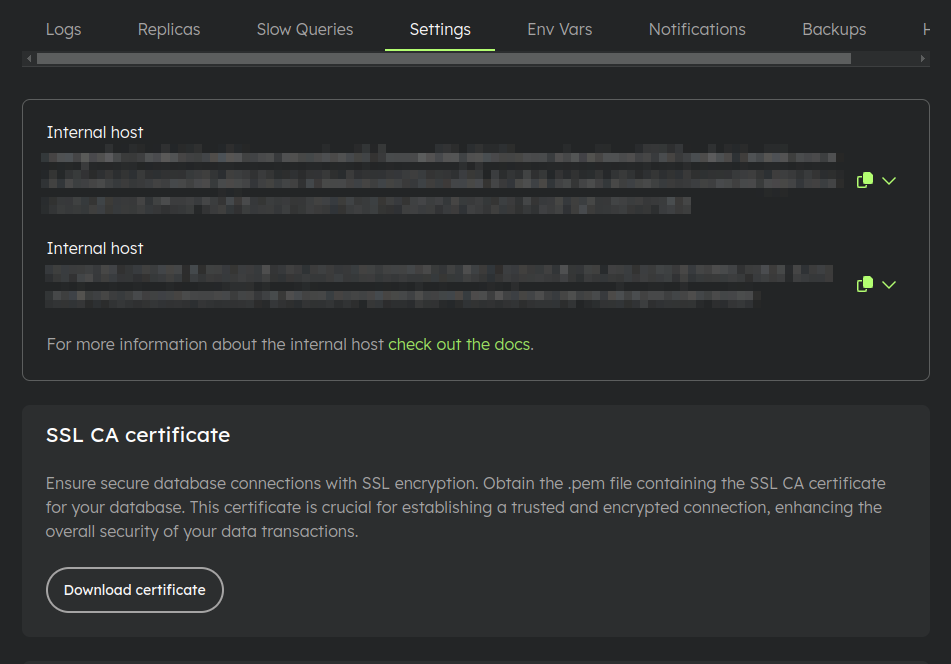
On the application environment settings page, within the Settings tab, you can download your database's SSL CA Certificate.
This certificate is essential for establishing a trusted and encrypted connection.
Backups
For databases hosted with us, we provide complimentary daily backups stored for up to 7 days, with a maximum limit of 30 GB. If you require additional backup storage exceeding 30 GB or retention beyond 7 days, please reach out to us.
Encryption
Each database is equipped with a unique key pair for encryption.
Download and Decryption
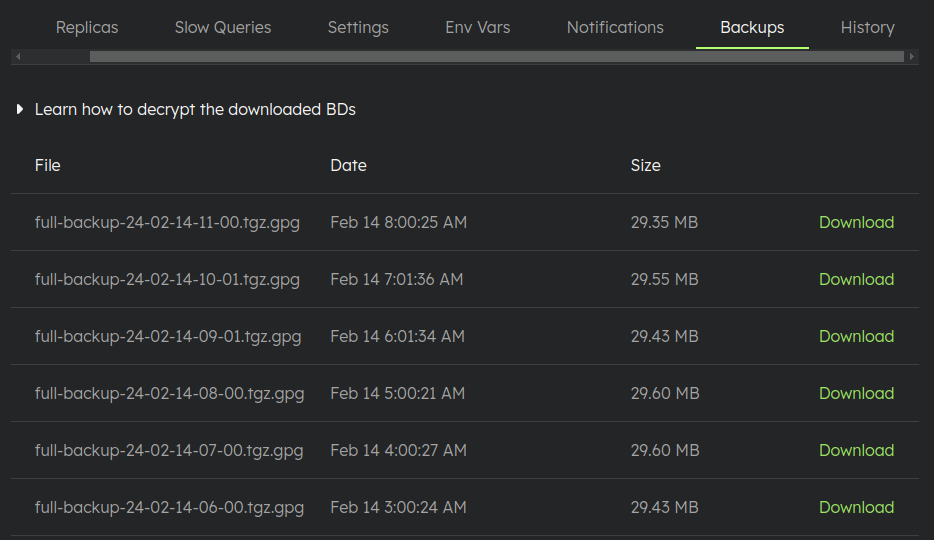
On the application environment settings page, under the Backups tab, you'll find a list of the most recent backups along with instructions for downloading and decrypting them.
Disk Price
Check our pricing page.